Scan the code.
Quick Share is already on your phone. Same Wi-Fi as your Mac.

Mac to Android in one scan. Nothing to install on the phone.
01
Drag photos, videos or documents onto Pidge.
02
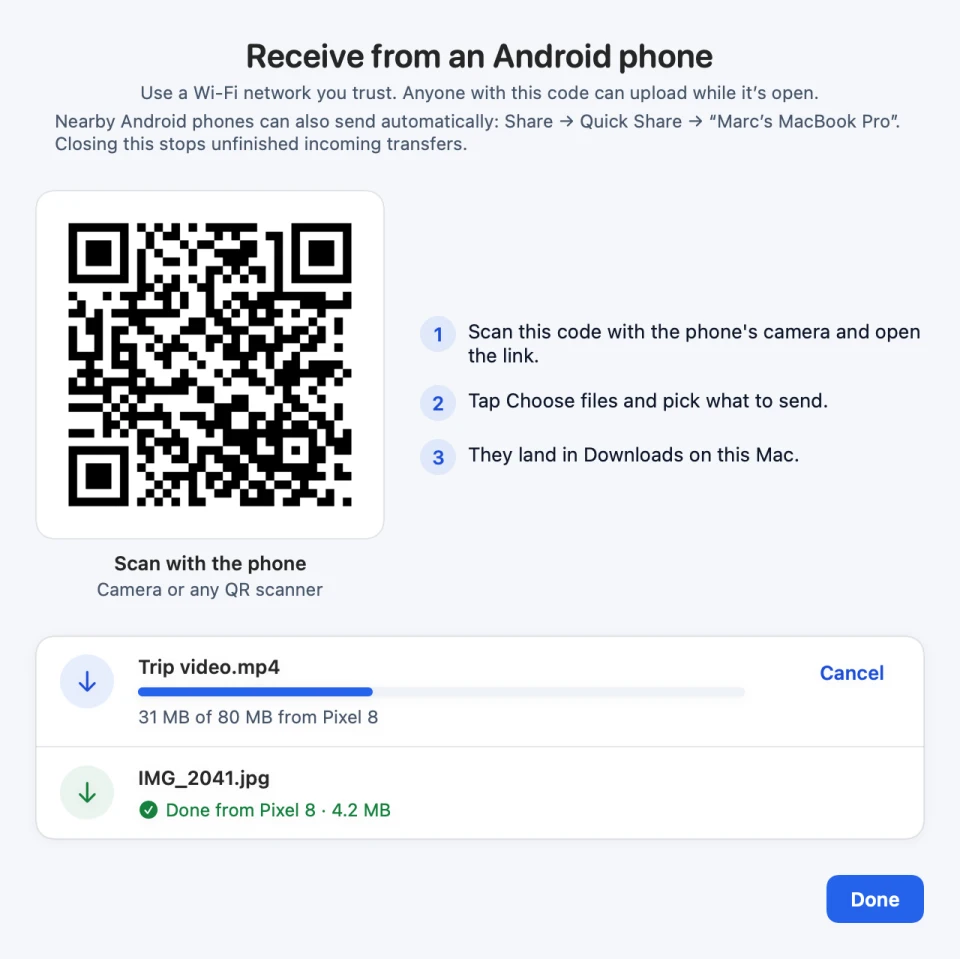
Point the phone’s camera at the code. Tap the Quick Share link.
03
Files land in Downloads, straight over your Wi-Fi.
Sharing with a group? Leave the code open. Each phone can scan it.
The phone uses its browser. Still nothing to install.
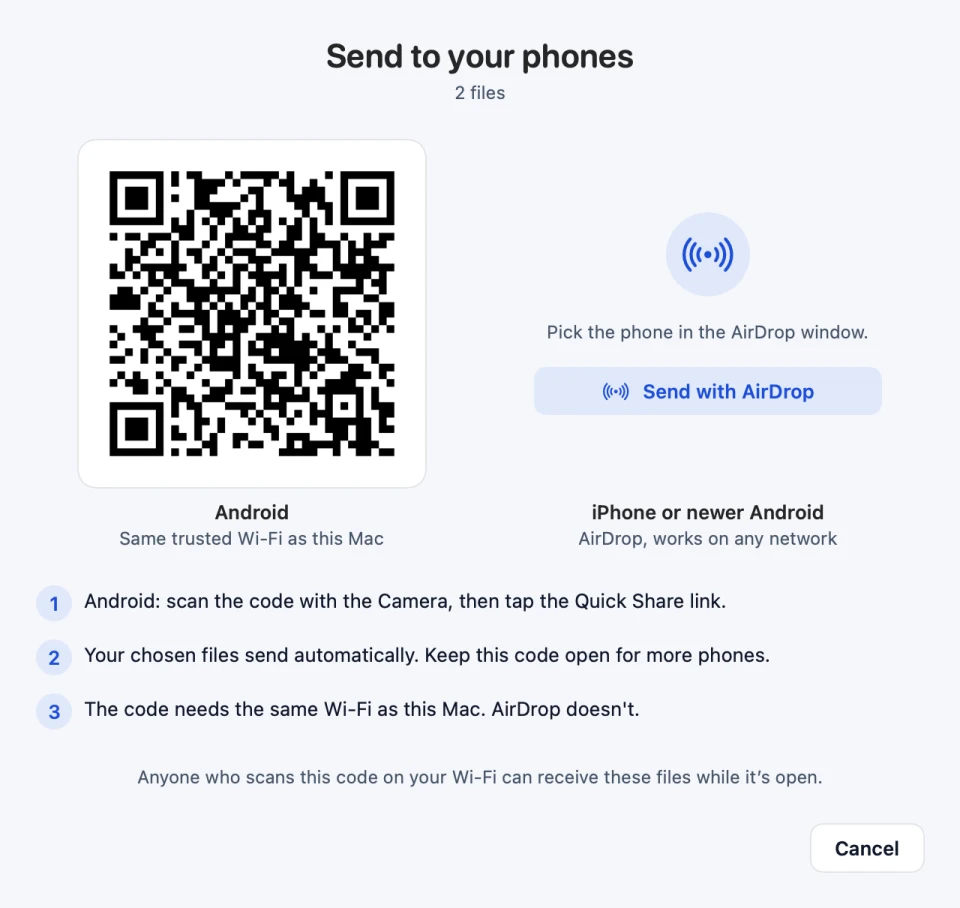
Quick Share is already on your phone. Same Wi-Fi as your Mac.
Pidge hands your files to the Mac’s own AirDrop. No shared Wi-Fi needed.
Set Quick Share to be visible to Everyone, then pick the phone in AirDrop.
US$3.99 once. Yours for good.
Apple silicon · macOS 14 or newer · license key sent after checkout
You’ll need an Apple silicon Mac running macOS 14 or later. Mac-to-Android sends use Quick Share on your Android phone. Phone-to-Mac QR uploads work in a browser. Connect both devices to the same Wi-Fi.
Allow Local Network access for Pidge on your Mac. Guest Wi-Fi often keeps devices apart. Connect both devices to the main network and scan a fresh code.
Files travel between your devices on your Wi-Fi. Only your license key is checked online, and that check never sees file names or contents. An activated Mac can work offline for up to seven days after a successful check.
Choose quick sharing on Wi-Fi you trust. Nearby phones can receive the files selected for an open send QR and send to an open Receive window. Closing the window stops unfinished automatic transfers. Choose Ask each time in Settings to compare Quick Share codes. Browser uploads use a temporary local HTTP link and should only be used on trusted Wi-Fi.
In Pidge 1.1.2 or later, choose Pidge → Check for Updates. Finish sharing, then choose Install and Relaunch. If you tested 1.1.1 or earlier, quit Pidge, download the 1.1.2 test update, unzip it, and replace Pidge in Applications once. Your settings and saved license stay on your Mac.